Configure Premises
The NetQ management dashboard lets you configure a single NetQ UI and CLI for monitoring data from multiple premises. This means you do not need to log in to each premises individually to view the data.
Configure Multiple Premises
There are two ways to implement a multi-site, on-premises deployment: (1) as a full deployment at the primary premises and each of the external premises or (2) as a full deployment at the primary premises with smaller deployments at the secondary premises.
The primary premises is called OPID0 by default in the UI.
Full NetQ Deployment at Each Premises
In this implementation, there is a NetQ VM running the NetQ software with a database. Each premises operates independently as an external premises, with its own NetQ UI and CLI. The NetQ VM at one of the deployments acts as the primary premises. A list of external premises is stored with the primary deployment.
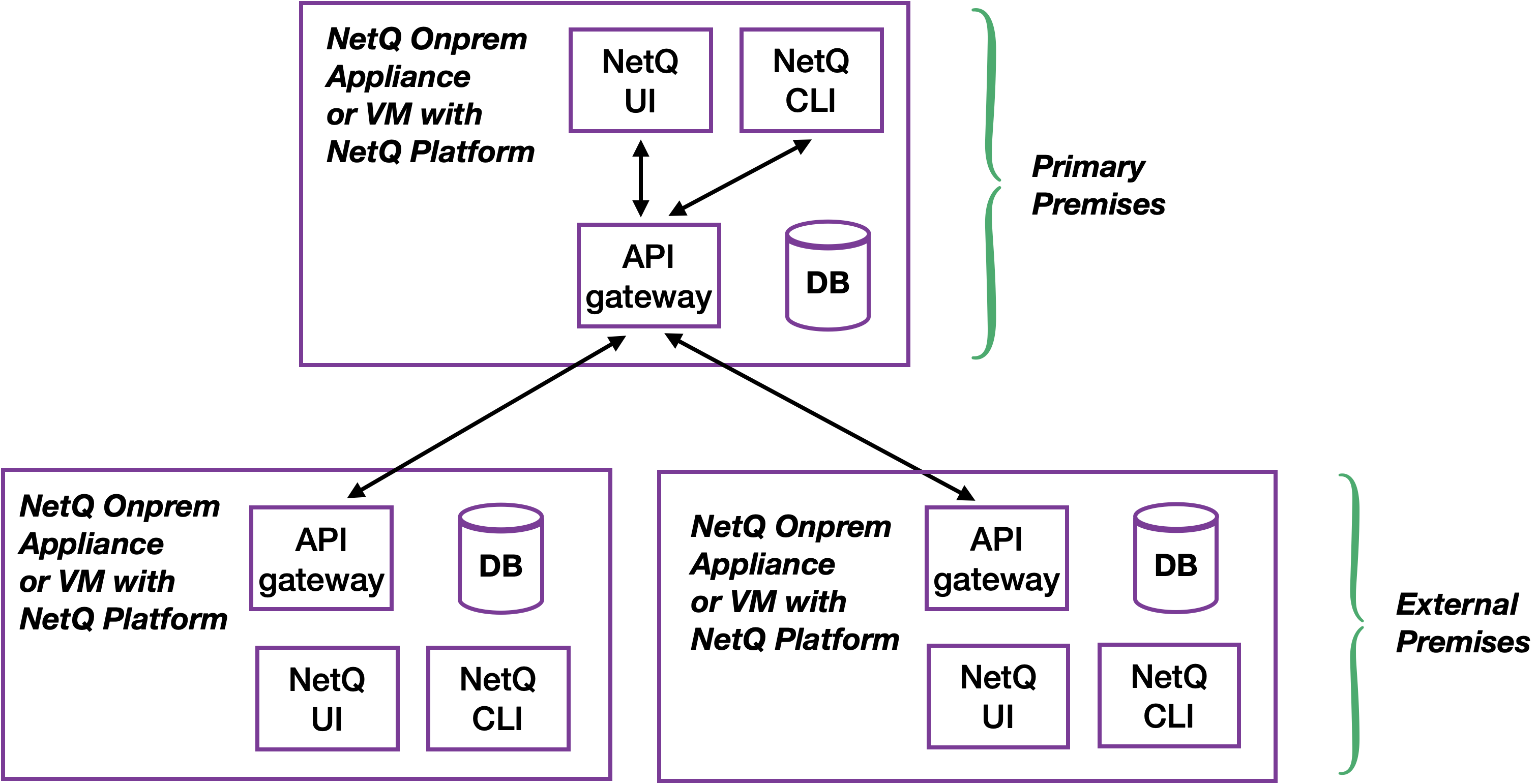
To configure a single UI to monitor multiple premises:
-
From the UI of the primary premises (OPID0), select the Premises
 dropdown in the top-right corner of the screen.
 -
Select Manage premises, then select the External premises tab.
-
Select Add external premises.
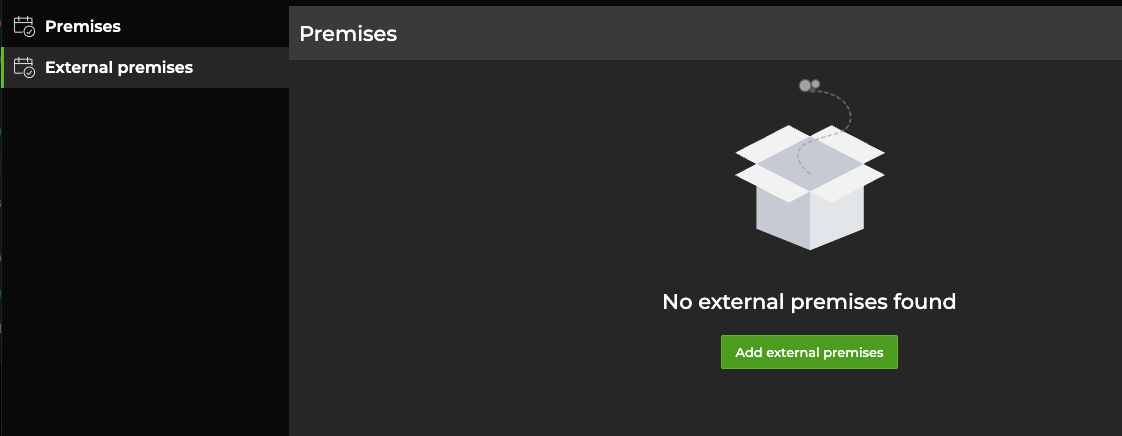
-
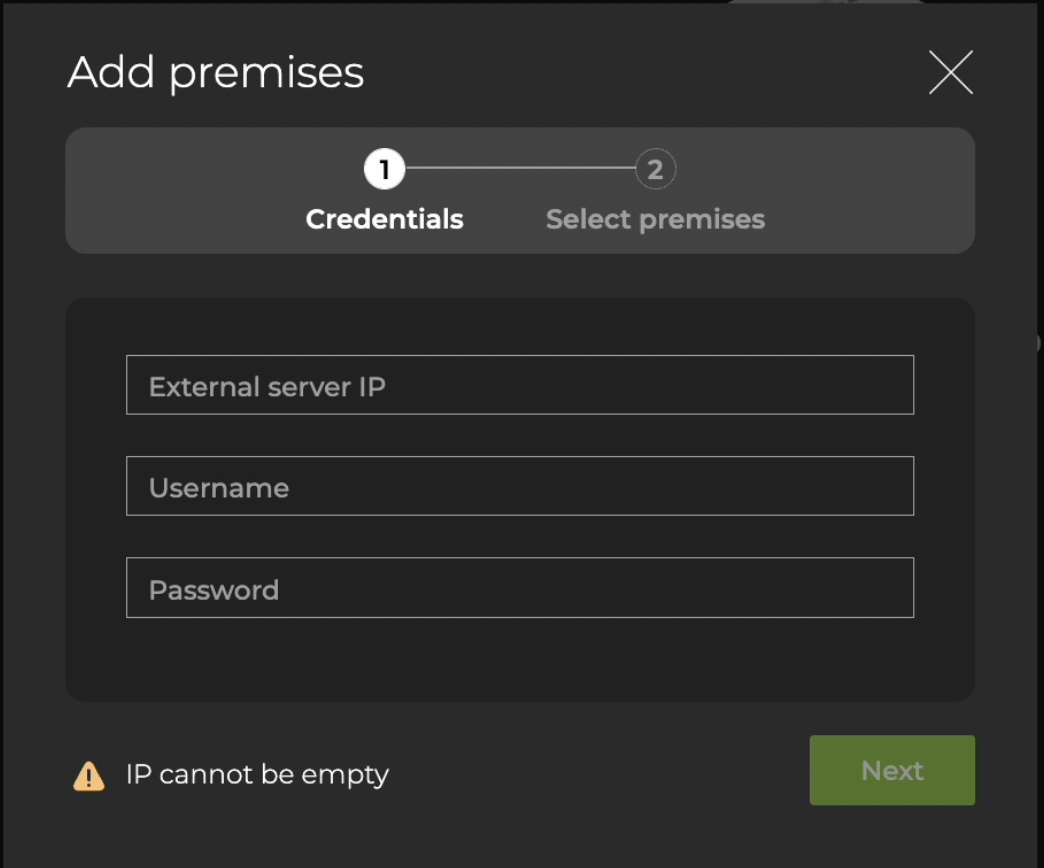
Enter the IP address for the external server, your username, and password. The username and password are the same credentials used to log in to the UI for the external server. Select Next
-
Select the premises you want to connect, then click Finish.
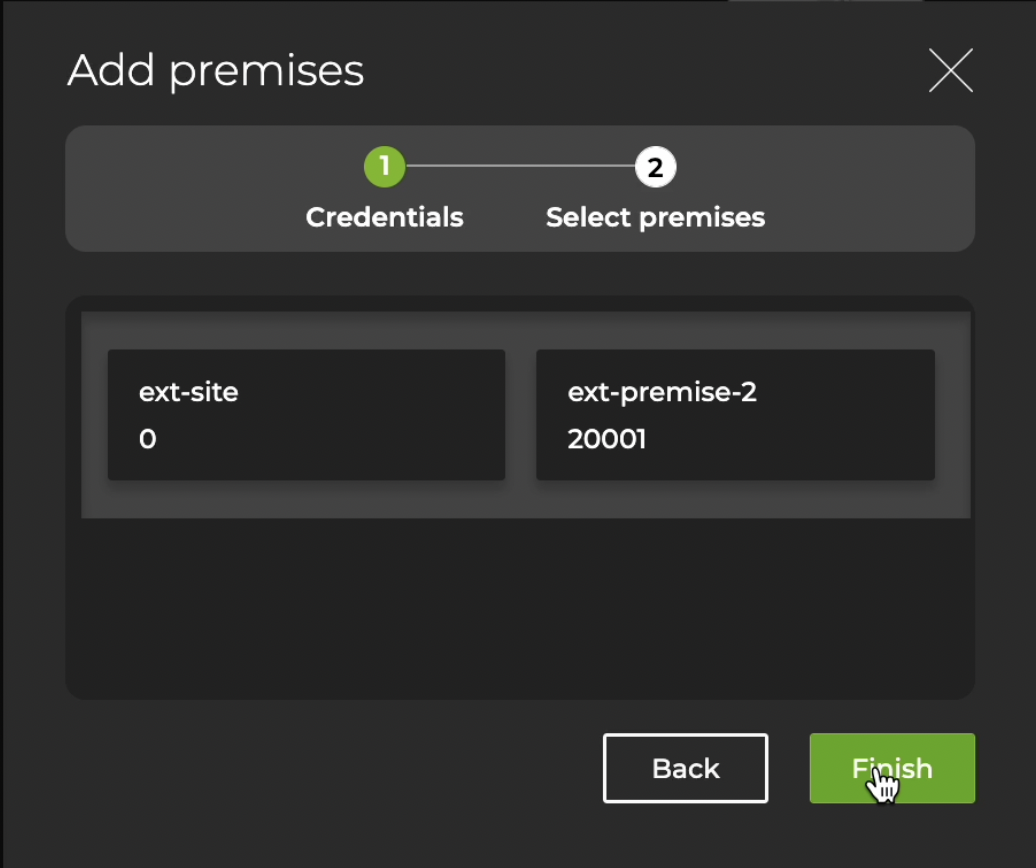
You can also reduce the number of premises that can be displayed in the UI by hovering over a deployment and selecting  Delete.
To view the premises you just added, return to the home workbench and select the Premises dropdown in the top-right corner of the screen. Alternately, run the netq config show cli premises command.
Rename a Premises
To rename an existing premises:
-
In the workbench header, select the Premises
dropdown, then Manage premises. -
Select a premises to rename, then click
 Edit.
Edit. -
Enter the new name for the premises, then click Done.
-
(Optional) Reconfigure the NetQ CLI by generating new AuthKeys. You must complete this step after renaming a premises for the CLI to be functional.